BMO POS Manual PDF
Existing POS system manual from the source download folder.
Open PDF
Use this page to access available manuals and legacy APK files, request protected BMO POS installer access, and contact POSMarket for the latest BizCloud app links or setup guidance.
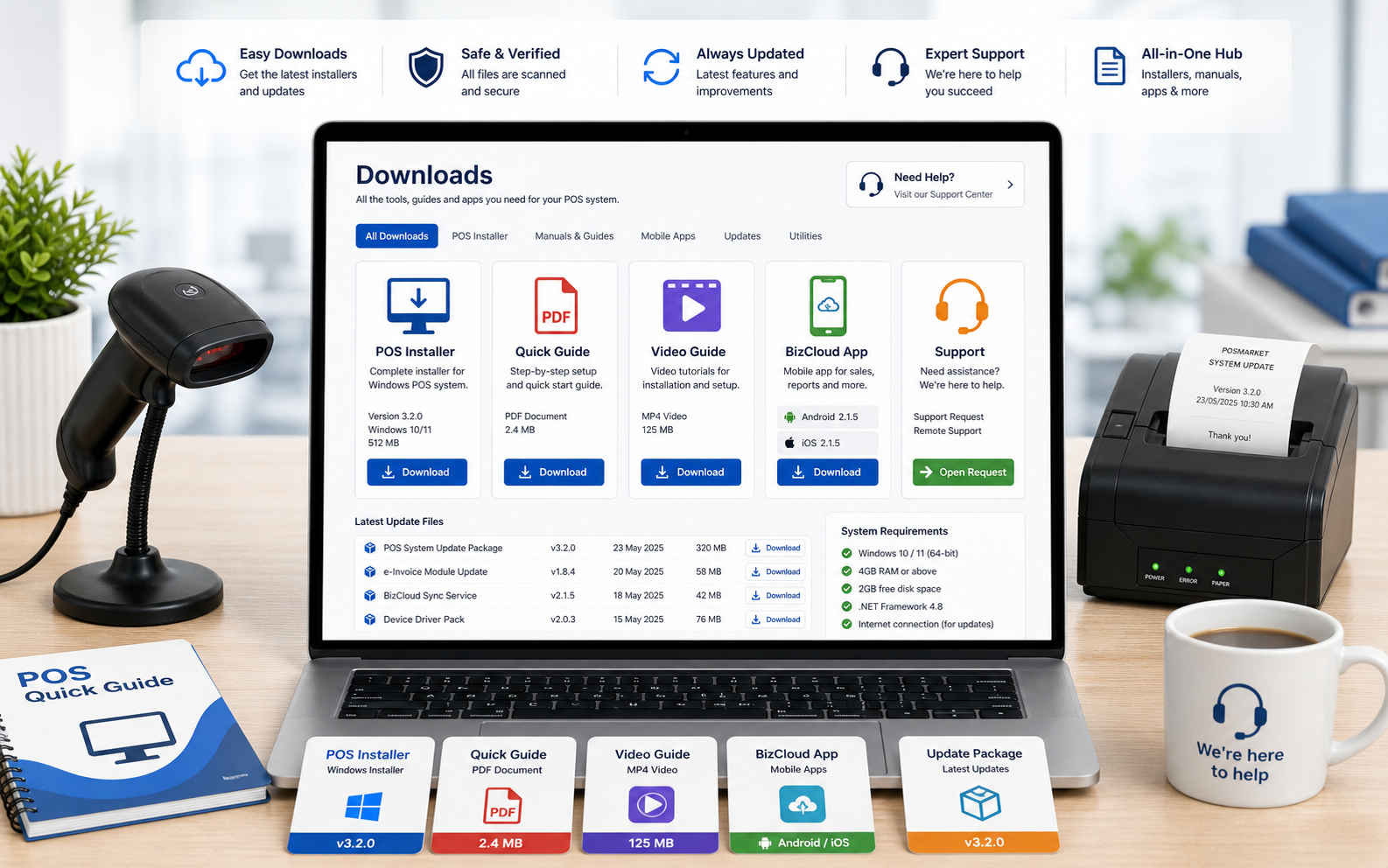
Some files can be opened directly. Installer and app access should go through POSMarket support so the correct version and setup path can be confirmed.
Existing POS system manual from the source download folder.
Open PDFInstaller access should go through POSMarket support/sales so the team can confirm version, setup and customer details.
Request InstallerAndroid, iOS and Huawei app assets are retained; contact the team for the latest store or app link.
Ask SupportLegacy SMS server APK available in the source download folder.
Download APKLegacy SMS server APK available in the source download folder.
Download APKLegacy SMS server APK available in the source download folder.
Download APKFor installer, migration or update work, a short support check saves time and helps avoid using the wrong file for the customer’s setup.
Tell support whether you use Offline POS, POS Web, Hybrid POS, HRM, Accounting or another BMO module.
Share the Windows PC, tablet, printer, scanner or app device involved in the download request.
POSMarket can provide the right installer, app link or guidance based on your version and setup.
Backup important POS data before updates or reinstall work, especially for offline systems.
POS systems often connect to receipt printers, scanners, cash drawers, scales and local databases. Before installing or updating, check the setup with support if you are unsure.
Jump to the main resource pages if you need setup instructions instead of download files.
Send your company name, POS version, device type and what you need to install. The team can point you to the correct file or support path.